Bulk generate alt text
Fill alt text for images already in your Media Library in one pass.
How to run it
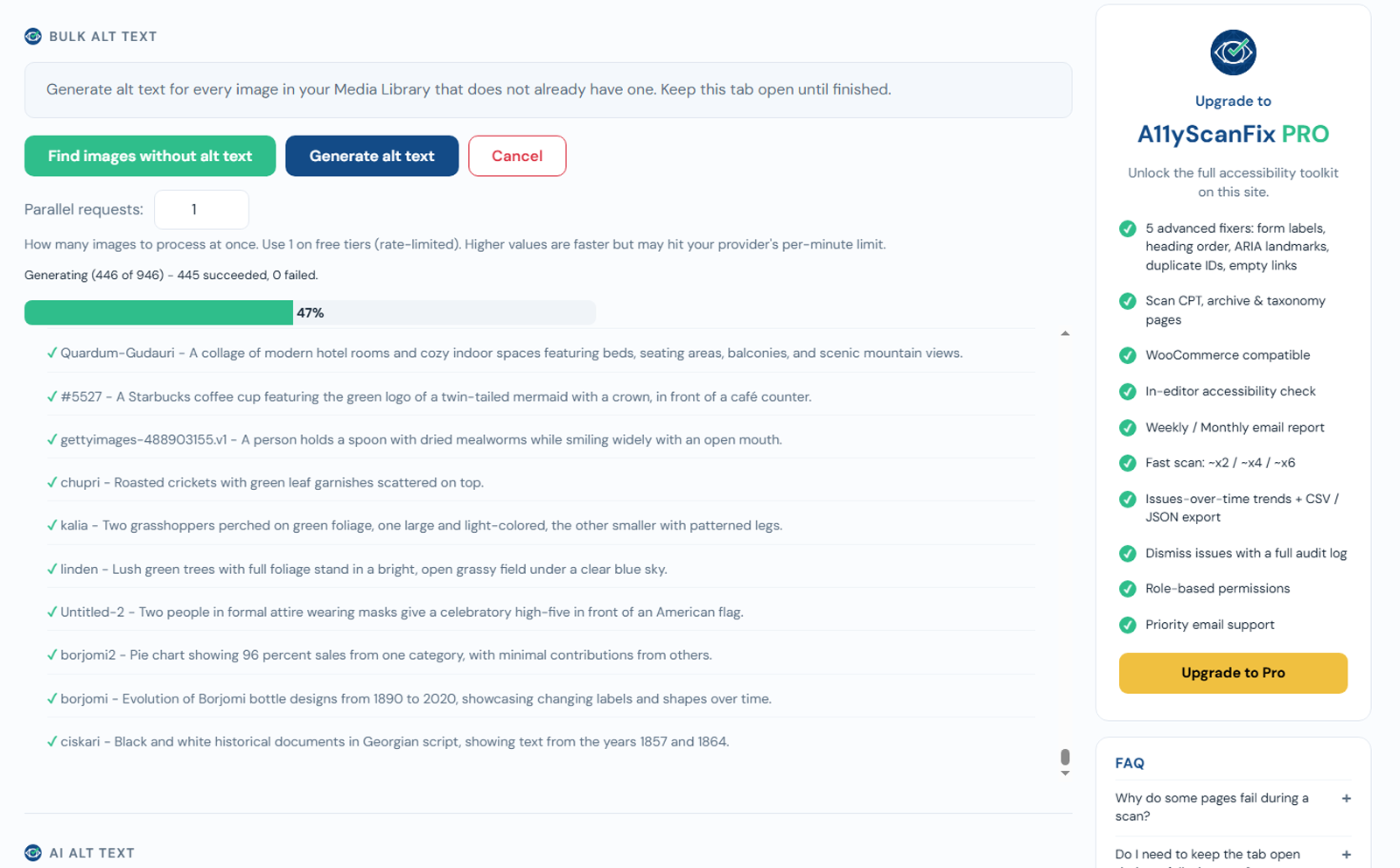
- Go to A11yScanFix -> AI Alt Text.
- Click Find images without alt text to build the list.
- Click Generate alt text to start.
- A progress bar shows "Generating X of N", with succeeded and failed counts. You can Cancel at any time.
Notes
- Only images that are missing alt text are processed, so re-running is safe.
- Generation uses your own API key, so cost depends on your provider - you pay per image. There is no fixed batch cap; the whole list is processed.
- A speed control lets you generate several images at once - raise it on a fast setup, lower it if your provider rate-limits you.
- The length of each description is capped by Max alt text length on the AI Alt Text settings.
- Large libraries can take a while; keep the tab open while it runs (you can Cancel any time).
Free option: Mistral
Mistral (Pixtral) can generate alt text on its free tier - a good way to caption a whole library at no cost. Keep the speed at 1 (one image at a time) so you stay within its rate limits. It is slower, but it works well and costs nothing.
Review the results
AI alt text is a strong starting point, but it is not perfect. After a bulk run, spot-check your important images - especially ones that carry information (charts, screenshots, diagrams) or act as links - and edit any description that misses context only you know. Purely decorative images are better left with empty alt text than given an AI guess.